


—
A great reaction GIF works because the emotion is instant. The raised eyebrow, shocked blink, fake smile, or slow nod says more than a full sentence. When you add your own face, a friend’s face, or a character face to a celebrity reaction, the joke can feel personal without needing a long caption.
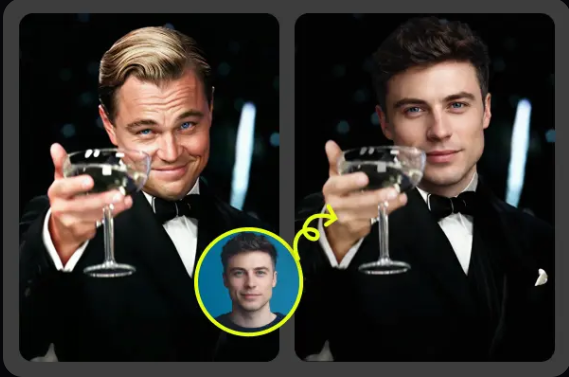
I’ve made these for group chats, launch announcements, and social posts, and the best ones usually start with a simple clip. A clean celebrity reaction, a clear face image, and a careful export matter more than fancy editing. Tools like GIF Face Swap make the process much faster because you can work directly with a GIF instead of cutting video by hand.
Before you start, keep the use honest. A funny reaction GIF for private sharing or obvious parody is very different from making something that could mislead people. I treat face swaps as entertainment, not proof that someone said or did something, and I avoid using them in ways that could harm a real person.
Prepare Your Source GIF
Start with the reaction itself. Pick a celebrity GIF where the face is visible for most of the clip and the head doesn’t spin too much. A front facing laugh, stare, gasp, or side eye is easier for AI to track than a clip with fast camera movement, heavy shadows, or a face blocked by hands.
Short GIFs work best. I usually aim for two to five seconds because that gives enough time for the reaction to land without creating a huge file. If the GIF loops cleanly, even better. A messy loop can still work, but the face swap may look strange when the final frame jumps back to the first one.
The face image you upload matters just as much as the GIF. Use a sharp photo with good lighting, no sunglasses, and a neutral or mild expression. The AI has to map features from the still image onto the moving face, so blurry selfies, extreme angles, and heavy filters often lead to warped eyes or a rubbery mouth.
If you’re using EasyFaceSwap, I’d still take a minute to check both files before uploading. I’ve saved myself a lot of failed renders by choosing a clearer face image first, instead of trying to fix a bad result later. Think of the source files like ingredients: the tool can cook fast, but it can’t turn poor inputs into a perfect result every time.
| Source choice | What works well | What to avoid |
| Celebrity GIF | Clear face, short loop, steady lighting | Fast spins, dark scenes, blocked face |
| Face photo | Sharp, front facing, natural lighting | Sunglasses, blur, strong filters |
| Final use | Parody, meme, private joke, clear context | Misleading claims or harmful impersonation |
Swap the Face with AI
Once your files are ready, upload the celebrity GIF first. The tool needs to read the motion, detect the face across frames, and understand where the new face should sit. If the GIF has more than one face, choose one where the celebrity is clearly the main subject, or the result may track the wrong person.
Next, upload the face image. I like to preview the photo at full size before using it because small flaws become obvious once the face is animated. If the photo has a tilted head, but the GIF is straight on, the swap may still work, but it can look less natural around the jaw and eyes.
After you start the swap, give the tool time to process. GIF face swaps are not just one edit. The AI has to apply the face frame by frame while keeping the motion, expression, and lighting close enough to feel believable. This is why a four second GIF can take longer than a single image swap.
When the first result appears, don’t judge it only by the first frame. Watch the full loop several times. I look closely at eye movement, mouth shape, skin tone, and the edges of the face. A swap can look great at the start but break during a laugh, turn, or blink.
If the result feels off, change one input at a time. Try a clearer face photo before changing the GIF. If that doesn’t help, choose a simpler celebrity reaction. This keeps you from guessing blindly. In my experience, a better source image fixes more problems than repeated renders with the same weak files.
Export and Test Your GIF
After the swap looks good, export the GIF and check the file size. Some platforms compress large GIFs heavily, which can make the face look soft or patchy. A shorter clip with fewer dramatic color changes usually survives compression better than a long, busy one.
Open the exported GIF outside the tool before you share it. I test mine in a browser tab and in the app where I plan to post it. A GIF that looks clean on desktop may feel too slow in a chat app, or it may be cropped in a way that cuts off the expression.
Captions can help, but don’t overdo them. The reaction should carry the joke. A short line like “me reading the brief” or “when the meeting could’ve been an email” gives context without fighting the visual. If the face swap is the whole joke, a simple caption often lands better than a crowded meme layout.
If you plan to use the GIF in marketing, be extra careful. Celebrity likeness can raise rights and permission issues, even when the edit is meant as a joke. For brand work, I’d use original footage, licensed content, or faces you have permission to use. The same workflow still applies, but the risk is lower.
Tips and Best Practices
The best celebrity reaction GIFs feel quick, readable, and a little exaggerated. You don’t need a perfect movie quality face swap for a meme. You need the emotion to read in half a second. If people have to study the GIF to understand it, choose a stronger reaction.
Lighting is the quiet detail that makes or breaks the result. If the celebrity GIF has warm indoor light, a face photo taken in harsh blue daylight may look pasted on. You don’t need a studio photo, but you do want even light and a face that isn’t hidden in shadow.
Match the expression when you can. A neutral face photo can work on many reactions, but a slight smile often maps better onto a laughing GIF. A serious photo may look odd on a big grin because the AI has to stretch the mouth and cheeks more than usual. I keep a few face images handy so I can test different expressions.
Think about the loop, too. Reaction GIFs are watched more than once, especially in chats. If the final frame jumps sharply, the joke can feel rough. A blink, nod, or slow stare often loops better than a clip where the celebrity turns away at the end.
Use the finished GIF in the right setting. A face swapped celebrity reaction can be funny in a private Slack thread or friend group, but it may feel strange on a formal company page. Tone matters. If you wouldn’t explain the joke to the person whose face you used, that’s a sign to rethink it.
Common Mistakes to Avoid
The most common mistake is starting with a low quality GIF. People often pick the funniest reaction they can find, then wonder why the swap looks unstable. If the original face is tiny, blurry, or covered by text, the AI has less information to track. A slightly less famous reaction with a cleaner face will usually look better.
Another mistake is using a face photo with heavy edits. Beauty filters, face slimming apps, and strong skin smoothing can confuse the swap because they remove natural detail. The final GIF may look plastic or uneven, especially when the face starts moving. A plain, sharp photo is usually the safer choice.
People also forget about context. A face swap can turn uncomfortable fast if it suggests a real celebrity endorsed something or reacted to a real event. Make the joke clear and avoid posting it as if it’s real footage. For public sharing, a caption or meme format can help signal that it’s edited.
Don’t chase perfection forever. GIFs are small, fast pieces of media, and most viewers won’t inspect every frame. If the eyes, mouth, and overall expression look right at normal speed, you’re probably done. I’ve wasted time fixing tiny edge issues that nobody noticed once the GIF was in a chat thread.
Creating a celebrity reaction GIF with face swap AI comes down to three things: a clean source GIF, a sharp face image, and a final check before sharing. Start simple, watch the full loop, and make edits based on what actually looks wrong. When you treat the tool as a fast creative helper rather than magic, you’ll get funnier, cleaner results with far less trial and error.
—

