



—
I was working on an Excel file some days back and to my amusement, the file got corrupted. I tried applying every method I know offhand to fix my XLSX document because that’s the only copy I have. But things did not seem to work out as I expected them.
After several hours of trying to fix it all, I was able to regain my deleted data with the help of some trustworthy and effortless process. Perhaps you plan on repairing or recovering a damaged Excel file, and you may learn about all of the tried-and-true ways that I have used. If you prefer and want the effortless process. You can always check out this online Excel repair platform or Excel Repair Tool.

HOW TO FIX DAMAGED OR CORRUPTED EXCEL FILES
Fix 1: Apply the Microsoft Excel native repair
The Microsoft software comes with an already built-in fixing feature that makes it easier for users to implement a fix on their official documents. Perhaps your XLSX or XLS files got corrupted you can easily use this application to fix them.
Start by opening MS Excel. Once that is done, move to the Menu > File > Open features to fix your documents. After that, you can easily locate the damaged Excel file that was previously saved in your hard drive or computer.

Next, choose the “Open and Repair” option and wait for MS Excel to attempt to fix up the selected file on its own or you can use the alternative – Load the document into the Excel using the drop-down button next to the Open feature, rather than using the normal method.
Fix 2: Discard all the irrelevant Excel data

The main files may face some issues if the temporary saved files have an issue. This problem can be removed totally by erasing all temporary data on your computer. Next, navigate to the Windows Explorer and open the Windows drive to execute the deleting. Now go to Users > [Username] > AppData > Local > Microsoft > Office. OR Manual search also works by adding or searching “tmp” and deleting files with the “tmp” extension from there. Now try loading your faulty XLSX file by re-launching MS Excel.
Fix 3: Recovery Toolbox for Excel will fix the corrupted Excel files
The recovery can fix Multiple files with just a click. The recovery toolbox should be used when the Excel files have a more serious issue. After the application has finished processing, you can see the findings and export your Excel files to whatever location you want.
Step 1: Select the corrupted Excel files on Recovery Toolbox for Excel
To fix corrupt Excel files, simply run Recovery Toolbox for Excel https://excel.recoverytoolbox.com/repair-excel/ and select the corrupted Excel file on the first page of the tool. You may use the “Browse” button to locate and select any damaged Excel file on the application by just clicking on it.

Step 2: Repair the selected Excel Documents on Recovery Toolbox for Excel
Simply click on the Analyze button to start or begin the selected Excel files.
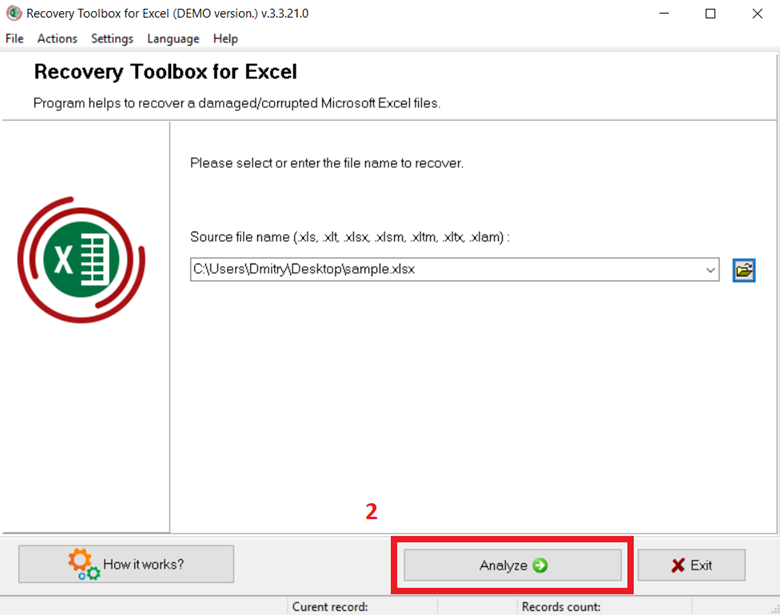
Now all you have to do is sit back and wait for it to fix all corrupt Excel files. The program also allows the users to monitor the repair procedure.
Step 3: Test the output and Export your Excel Files
Note the Recovery Toolbox for Excel will notify you once the process is done and fixed. To check the already repaired or fixed document -Simply check for the preview page.

On the Recovery Toolbox for Excel interface, preview the corrupted Excel document to see if it has been fixed. That concludes the procedure. If the results met your requirements, simply use the Save recovery button next to the file’s details to save the file.

Fix 4: Use an online repair service for damaged Excel files
A damaged or corrupted Excel file can be fixed on either Android or IOS with a couple of clicks.
Step 1: Open service in the browser
Follow the link: https://excel.recoverytoolbox.com/online/

Step 2: Upload the file
Drag and drop the corrupted file or select the file from your file. Add your email into the form, because the network breaks sometimes and it takes time to restore, but with the help of the mail, you get the copy forwarded to your email.
Now to start the process, click on the button Next Step.

Step 3: View results
You can:
- Check for the screenshots of the restored tables
- Download the DEMO file of the recovered file
- Carefully check each cell and sheet. How many cells, sheets, and other things were recovered.

To download the already fixed Excel document, you need to pay for the service by clicking the button Next Step.

Fix 5: Scan corrupted XLSX file with antivirus
Step 1: Excel files get affected by viruses
The file can get corrupted or damaged after it has been affected by a virus. Due to this effect, the damaged or corrupt Excel files can be scanned with a security application to fix them. Now to fix it all, simply move the file to the desktop. Right-click on your mouse, and scroll down to choose to scan with any trustworthy antivirus program. All users without an installed antivirus can use Microsoft Defender to scan the document. After the scan, you run a check on MS Excel and try to load the faulty file.

Fix 6: Add-ins that you don’t want in Microsoft Excel should be removed
The best technique to fix a damaged Excel file is by extracting all questionable add-ins in MS Office. Start by opening MS Excel and to troubleshoot the problem go to Menu > File > Options. After the dedicated Excel Options window has been opened by you. Go to the Add-ins area from the sidebar.

Now, you can uninstall any add-in from here by clicking the “Actions” feature in the bottom panel.
Fix 7: Start the MS Office Tests
Using the MS Office test is another clever idea to fix the damaged Excel files. Aside from being a damaged document, your installed MS Office Suite is likely to be contaminated as well. Simply navigate to the Programs & Features section in the Control Panel. Check for the MS Office application, then select the “Change” button.

The next steps – Simply scroll down and select “Repair “ on the list that pops up to begin the process of repairing the MS Office Suite that was installed.

The MS office suite allows users to run a Quick Repair as an alternative. Any issue with MS Office can now be resolved just by following a simple click-through method.

Once you’re done with the own process, kindly restart MS EXCEL on your device to check out the already fixed XLS file.
Conclusion:
We conclude this comprehensive explanation of how to fix damaged and corrupt Excel files in a variety of ways. Aside from that, the proven process highlighted earlier can be used to keep your data safe and fix Excel-related issues.
Try our Excel File Repair Tool NOW
—
This content is brought to you by Victor Bobrov
Feature Photo: iStockPhoto
Inset photos provided by the author.

