



—
When you are drowning in a pile of reports on your computer, there is a chance that some of these Excel files can get corrupted. This can be frustrating as these files contain crucial information or the company’s financial record. Therefore, you need to fix corrupted Excel files using practical tools and software. This article will examine the top file repair solutions and provide comprehensive steps to restore corrupted Excel files.
Part 1. Why Did My Excel Workbook Got Corrupted?
Part 2. Top-Rated Solutions To Fix Corrupted Excel Files in 2025
Part 3. [Online Solution] Repair Excel Workbook Without Downloading Software
Part 1. Why Did My Excel Workbook Got Corrupted?
This part will provide an overview of the main reasons why your Excel files get corrupted and damaged. By understanding these reasons, you’ll be able to find a solution to fix these problems with ease:
- Sudden Power Outage: If, for some reason, your computer unexpectedly shuts down while you are working on the Excel file, there is a high chance it can get corrupted. Moreover, the sudden power outage caused an unsuccessful save and led to corruption.
- Unnecessary Add-ins: When Excel has too many add-ins, it can disrupt the normal functioning and processing of the software. These add-ins slow down the processing and interrupt functions, so you will need an advanced Excel file repair tool.
- File Compatibility:Users might find that they cannot open an older Excel file because of its incompatibility with the new update. It is advised to check the file compatibility as it can lead to corruption.
- Outdated Software: In case your Microsoft Office is outdated, opening an Excel file on it might lead to corruption. Therefore, regularly updating the Office is recommended to keep your essential spreadsheets safe.
Part 2. Top-Rated Solutions To Fix Corrupted Excel Files in 2025
To tackle the corrupted worksheet, we have gathered the top 5 methods that will repair the Excel workbook with ease.
1. Removing Unwanted Add-ins Within Excel
Though add-ins enhance Excel’s functionality, they are usually the main cause of conflict in file corruption. By disabling or removing them entirely, we can easily fix corrupted Excel files without interference in the software. To learn how to eliminate these conflicts and ensure a smoother recovery of Excel files, follow these steps:
Step 1. Open Microsoft Excel, head to the left-side panel, and click the “Options” option on its main interface.
Step 2. On the “Excel Options” window, access the “Add-ins” tab, and click the “Go” button at the end of this screen next to the “Manage” section.
Step 3. Next, in the “Add-ins” dialogue box, uncheck the unnecessary add-in that interrupts your file. Now, click “OK” to remove that particular add-in from Excel.
2. Check AutoRecover File Location For Excel File
Excel has an AutoRecovery feature that always saves a backup of your spreadsheet or workbook. If, in any case, your file gets corrupted, you can turn to these backup saves and locate your desired files with ease. Follow the given instructions to access and restore your corrupted files and easily repair the Excel workbook:
Instructions. Access the “Options” tab in the main interface and enter the “Excel Options” dialogue box. Now, open the “Save” tab and check the “Save AutoRecover Information Every.” box. Moving forward, choose the “AutoRecover File Location” settings under the “Save Workbooks” section. Once you have enabled this feature, click the “OK” button to auto-repair Excel files in the future.
3. Repair Microsoft Office
Microsoft Office itself can malfunction and disrupt the file, leading to Excel corruption. In other cases, the Office might contain outdated components causing file corruption. So, to cater to these concerns, repairing it can help resolve the issue and fix corrupted Excel files. We have given you comprehensive steps on how to repair Microsoft Office:
Step 1. Go to Windows “Control Panel” and click the “Program and Features” option from the opened “All Control Panel Items” window.
Step 2. From here, right-click the “Microsoft Office” and choose the “Change” option from the drop-down menu to open a small dialogue box with repair options.
Step 3. When the “Microsoft” repair dialogue box appears, select one of the two options: “Quick Repair” or “Online Repair,” and hit “Repair.”
4. Fix Corrupted Excel File Using Wondershare Repairit
When needing quick file repair, Wondershare Repairit File Repair provides an excellent Excel file repair tool with advanced repair technology. You can fix any corrupted office documents, such as Word, PowerPoint, and ZIP files, without losing any of the precious data. Moreover, it can tackle any corruption scenario and offer you seamless repair.
The quick and efficient repair process of this tool makes it more efficient to use when you are on a tight deadline. If you can’t open your Excel files or they are unreadable, Repairit can easily fix these corruption cases in mere seconds. You can add any file size and number of files to this tool, and it will thoroughly scan the files to offer fully repaired files.
Key Features About Wondershare Repairit
- Batch File Repair: This software supports batch file repair, making it more productive and effective in the long run.
- Preview Screen:When the file is repaired, users can preview and verify every detail of the Excel file before downloading.
- Automatic Extraction: Repairit can automatically decompress, extract, and restore repaired files to their original state with ease.
- Advanced File Repair:If your file is severely damaged, this software also provides suitable services and tools for it.
Instructional Guide on How to Repair Corrupted Excel Files
The following steps will guide you in fixing any corrupted Excel files using this best tool to repair the Excel workbook.
Step 1. Access the File Repair Tool on Wondershare Repairit
Download the software on your device and access its main interface on your desktop. From here, open the “More Types Repair” tab from the left panel. Now, under the “Corrupted File Repair” section, click the “File Repair” option to start.

Step 2. Add the Corrupted Excel Files
On the next screen, press the “+Add” button and import the desired corrupted Excel files from your file explorer.

Step 3. Start the File Repair Process
After that, when the spreadsheets are added in the “Unrepaired Files” tab, navigate to the bottom right corner and hit the “Repair” button to initiate the process.

Step 4. Preview the Repaired Excel File and Download
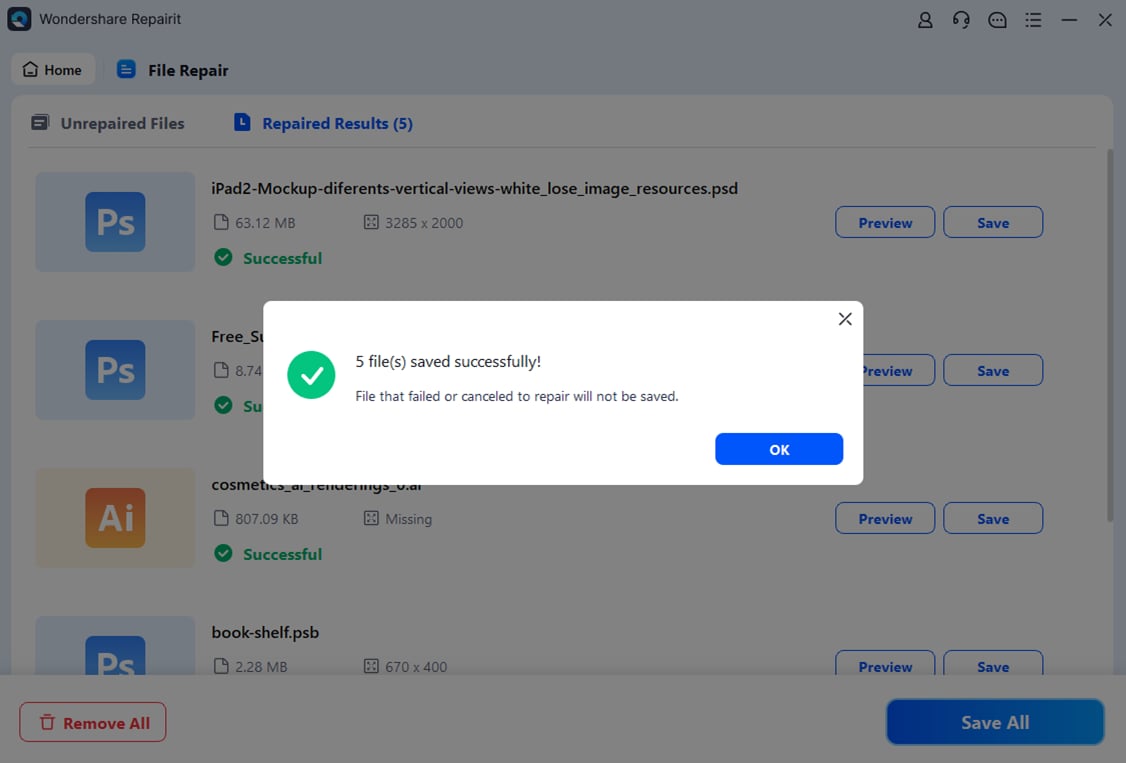
Once the process is completed, click the “Preview” button next to the repaired files and verify all the data. When satisfied with the results, press the “Save All” button to download them all on your computer.
Part 3. [Online Solution] Repair Excel Workbook Without Downloading Software
While working on MS Excel, we often see file errors restricting us from opening or editing the document. For those who are looking for a quick online solution to resolve Excel file-related problems, we introduce Repairit Online. Instead of investing in a file-repairing tool, you can use this tool’s web-based version to fix the issues in an MS Office file. This Excel file repair tool uses AI to restore damaged documents.
Using this repair website, users can upload and refine Excel versions of 2019, 2016, 2013, 2010, and 2007. By letting you upload as many files as you want, Repairit puts an end to repair limitations. In addition, you can use this website to upload files with no size limit.
A Complete Guide to Repairing Excel Workbook Using Repairit
After understanding the file-resolving capabilities of Repairit, you should learn how to use this platform. Follow the guide below and learn how to use this platform to repair damaged Excel files.
Step 1. Add the Damaged Excel Files For Online Repair
To start the process, open Repairit on the web and access the left panel to select the “File Repair” tab. When the interface changes, click “Add Files” to upload the damaged Excel files.

Step 2. Repair the Batch Excel Files and Download
Once all the uploaded files appear on the next page, head to the bottom right of the page to select the “Repair All” button. Wait for the Excel files to be repaired, and use the “Download All” button in the following window to export all the repaired files.

Conclusion
Dealing with a damaged or corrupted Excel file can be daunting when all your sensitive and important information is at risk. That’s why this article provides you with the best 5 repair methods to fix corrupted Excel files. Wondershare Repairit turns out to be the most efficient, as its powerful repair capabilities and ability to repair severely corrupted files make it an invaluable tool.
—
This content is brought to you by Hyder Ali
Photos provided by the author.

